Repair News Articles from the Tech Industry
December 24, 2012
How to add a Start Menu to Windows 8 using Classic Shell
Windows 8 no longer includes the traditional Start Menu that Windows users have become associated with using. Instead they replaced it with a new interface called the Windows Start Screen that many people find to be not as intuitive as the traditional Start Menu. This is especially the case if you are not using a touch screen. With this in mind, a free program called Classic Shell has been updated to support the ability to add a Start Menu to Windows 8.
Classic Shell is a popular Start Menu alternative that allows you to change the Windows Start Menu to appear as different Windows Start Menu styles or a new one created by the developers of Classic Shell. A really nice feature is that for those who do not wish to use the Windows 8 Start Screen, Classic Shell is configured by default to bypass it and boot directly to the desktop. If you wish to use your apps from the desktop, Classic Shell will also list them in the Start Menu for easy launching. This can be disabled for those who wish to continue to boot Windows 8 to the Start Screen. more... »
June 1, 2012
Microsoft's Windows 8 Release Preview: What's in and what's out
On May 31, Microsoft is making available for download by any and all interested testers the final public pre-release build of Windows 8 before the product is released to manufacturing.
(The preview.windows.com site is one place you can grab the newest Windows 8 test bits for x86/x64 systems.Testers running the Consumer Preview of Windows 8 will not be able to upgrade; you’ll need to do a clean install.) more... »
May 13, 2012
Two Weeks In, Google Talks Penguin Update, Ways To Recover & Negative SEO
It’s been about two weeks since Google launched its Penguin Update. Google’s happy the new spam-fighting algorithm is improving things as intended. But some hurt by it are still wondering how to recover, and there remain concerns about “negative SEO” as a threat. I caught up with Matt Cutts, the head of Google’s web spam team, on these and some related questions. more... »
November 13, 2011
Is it possible to get "true" 5.1 surround sound from a PC game?
I'm working with an older mobo, P35C-DS3R and using optical to AVR for 5.1 decoding in Dolby, DTS, etc. The ALC889A chip can carry through pre-encoded signals just fine, but PC games are bothersome. What is the reality these days for the 'source audio' of PC releases? I recall often seeing highly compressed MP3, OGG..
I also see these chipsets like X-Fi and CMI8770 on Newegg for sound cards with "Dolby Digital Live" (DDL) - some on-the-fly encoding into a compressed DD stream that can be carried by optical (2.0 PCM). Sounds interesting and I'm seeing a lot of great reviews on it, but remain skeptical. more... »
July 14, 2011
Win7 hidden reinstall, refresh the operating system to repair your computer
Microsoft won’t tell you this, but you can do a fast, nondestructive, in-place, total reinstall of Windows 7 without damaging your user accounts, data, installed programs, or system drivers.
That means you may never have to do a full, from-scratch reinstall again, even when your system is misbehaving so badly that a full reformat-and-reinstall seems the only answer! more... »
June 26, 2011
Windows Phone 7.1 Technical Preview
SlashGear has a nice hands-on video of Windows Phone 7.1 Technical Preview which showcases many of the new features.
"Mango" is designed around the sharing of information and interaction with a person or group of people. Some of the features that should allow for easier communication include:
- Threads. Switch between text, Facebook chat and Windows Live Messenger within the same conversation.
- Groups. Group contacts into personalized Live Tiles to see the latest status updates right from the Start Screen and quickly send a text, email or IM to the whole group.
- Deeper social network integration. Twitter and LinkedIn feeds are now integrated into contact cards, and “Mango” includes built-in Facebook check-ins and new face detection software that makes it easier to quickly tag photos and post to the Web.
- Linked inbox. See multiple email accounts in one linked inbox. Conversations are organized to make it easy to stay on top of the latest mail.
- Hands-free messaging. Built-in voice-to-text and text-to-voice support enables hands-free texting or chatting.
April 15, 2011
Windows 8 Frequently Asked Questions / Quick Guide
Q: What is Windows 8?
A: Windows 8 or what Microsoft has referred to as Windows vNext is presumed to be the next client and server release of Windows that follows Windows 7 and Windows Server 2008 R2. Windows 8 which is currently in development, started immediately after Windows 7. Windows 8 promises to introduce radical improvements to the Windows desktop experience while supporting a variety of form factors. At the Consumer Electronics Show in January of 2011, Microsoft previewed early development Windows 8 code running on prototype hardware and System On a Chip (SOC) architectures from ARM Holdings plc, Intel and AMD. Based on early leaked information, Windows 8 will feature a heavily influenced Windows Phone design with a rumored dual interface with certain tile based influences adapted from Microsoft's mobile smartphone operating system. more... »
March 13, 2010
Windows 7 Installation Guide
In this guide I will explain how to install Windows 7 in a maximum of 40 minutes by both DVD and USB. This guide is for any version of Windows 7 and both x86 and x64 are installed the same way. To start you will need an ISO image of the version of Windows 7 you have chosen and either a DVD or USB Drive.
You will need a DVD Burner, a DVD burning software and a blank DVD-R or DVD-RW to prepare the installation disk. You can use any of the popular burner programs out there but I prefer PowerISO. Here is a link to CDBurnerXP -http://cdburnerxp.se/ which is a free alternative. more... »
March 6, 2011
Windows 7 Home Networking FAQ's
Every few weeks someone asks for a Windows 7 home network guide, or links to one. I have never written one because Microsoft has already done a fine job at writing guides on this topic. The purpose of this post is just to show folks where those guides are, and to show more advanced users some more info. more... »
February 13, 2011
How To Enable IPv6 On Windows XP
Most ISPs are in the process of enabling the IPv6 protocol which is then available for usage in addition to the currently used IPv4 protocol. Windows Vista and Windows 7 users do not need to enable or configure their operating system for IPv6 usage as it is enabled by default. The situation is different for Windows XP users who need to install the IPv6 protocol to add support for it to the operating system.
It is probably a good idea to test if IPv6 is already available on the operating system. An easy option to find out is the ipconfig command which displays network information in a command line window. To run the command press Windows-R, type cmd and hit enter. This opens the Windows command prompt. Now use the command ipconfig to find out if IPv6 is available on the computer. Please note that the following screenshot is showing ipconfig on Windows 7. more... »
February 6, 2011
The Live cd List
This site was created to help sort through the many LiveCDs available to find the right one. It currently tracks LiveCDs, LiveDVDs, and LiveUSB operating systems.
Rules
Each entry must have a web presence (website, web page, etc) and an available download (free or paid) for a CD, DVD, or USB Flash Drive image.
Key
Primary Functions
Desktops: provides a working GUI desktop environment with a collection of desktop programs, such as browsers and text editors. Many also include utilities for other purposes, such as home entertainment, but are only listed here because the additional functions are not their primary focus. more... »
January 13, 2011
Dedicated Server Provider Checklist
I recently read with interest an article on pcmag.com which gave advice on what to look for when buying a server. The comments were well thought through for those purchasing their own server – perhaps for installation into an on-site corporate data center. For those who need to rent a dedicated server from an external hosting provider, there are a few other important items to consider. The following is a list to refer to when contemplating selecting and using a dedicated server provider. Thanks go out to dedicated server provider 34SP.com for contributing expertise to this piece. more... »
December 19, 2010
Malwarebytes 1.50 Portable, How To...
This utility has saved me countless hours fixing clients machines hosed up with bugs, run in safemode. The files are installed locally so the usb drive can be removed after starting the scan.
1. You'll need to start by installing a copy of Malwarebytes.
2. Once it's installed, copy the application directory to a folder. Since I simply called my folder "program", you may need to change the script. Something I didn't mention was the %~dp0 command, which will take the drive letter, path and name of the batch file to form the full directory the batch file resides in. Basically, no matter what you do, make sure the Malwarebytes application directory folder is one level deeper than the script. When the script is executed, it'll look in the folder that's just beyond it. more... »
P-III autopsy
For teaching a course I needed to take a closer look at a CPU. I asked around and got my hands on an old P-III Coppermine that was about to get thrown out. I'll start with a disclaimer: I know virtually nothing about CPUs, so if I claim something to be true, it probably isn't.
The first challenge is to get the actual silicon processor chip off of the plastic bonding board. In the picture below, the blue thing you see is the back side of the processor chip. When the processor is finished, it is turned upside down and bonded to the green circuit board. This allows the metal pads on the silicon chip and the pads on the circuit board to join, creating a connection (this is one of those claims...). I believe that the CPU at that stage is heated up in order to melt the joints and thereby solder them together.
Click images for full-size. Especially the scanning electron microscope images below could be interesting to view in all its splendor. more... »
November 4, 2010
PC Build stop motion Video
Video: Justin Robinson's epic build following the demise of The Beast continues apace, with a whole new stop-motion vid to boot!
Justin's back to his building tricks, and after a brief period of mourning for his beloved Beast, he's continuing on with his latest, more personal, epic project. more... »
November 3, 2010
Kindle 3: e-book readers come of age
During a stint in California, I once wandered into a ramshackle San Diego bookstore and began browsing the back shelves in search of dusty treasures. After some time, the owner—who appeared to be an aging hippie—popped up at my side like an apparition, giving me a terrific start. He talked at me about his store. "I don't sell books," he said, leaning uncomfortably close. "I smell books." To prove his point, he took a volume off the shelf, pulled it to his nostrils, and inhaled deeply, lovingly, bibliophilically—the book as bong hit. more... »
November 1, 2010
Ten Uses for an Old PC
Just because you bought a new PC doesn't mean you have to throw away the old one. Here's how to make the most of an older computer.
You've finally gone and bought a new PC. It has a boatload of memory, lots of cores, and a fast, modern graphics card. But now your old computer sits in a corner, and although you know it's just a machine, it seems to be sulking like a puppy that missed its morning biscuit. It's weird, but you feel guilty with the whole idea of throwing it out. more... »
October 28, 2010
What's a good wireless router with usb printer support?
I'm looking for a solid wireless router that supports USB printer sharing.
It's for a friend who's a light internet user; email, paying bills, etc. They won't be downloading any heavy torrents or gaming. They would like to be able to print/access the net from anywhere in the house (About 2000 sq ft) and on their quarter acre property.
There are so many options available nowadays I'm really at a loss. I'd like to keep it under $100 if possible. I'm tech support/installer, but I don't know that I'd need anything like DD-WIRT. Unless it makes it easier for me to setup/maintain. more... »
October 27, 2010
How to Read PDF Files on Your Amazon Kindle
If you've got one of the newer Kindle devices, you've got the ability to read PDF files built right in—very convenient, but how does it work? Let's take a quick look at how to get them on the Kindle.
Note: this isn't exactly rocket science, and the majority of Kindle owners probably already know how to do this, but we figured we'd cover how to do it anyway just in case you're considering buying a Kindle. more... »
September 4, 2010
How to test LCD screen inverter in a laptop
In this post I explain how I test the LCD screen inverter board in a laptop computer.
The screen inverter failure is very similar to the backlight lamp failure. In both cases the screen gets very dark and the image on the screen becomes very faint, barely visible under a bright light.
If you suspect the inverter board failure, I know only one reliable way to test that. It’s either replacing the inverter board with a known good one and see if it works, or connecting a known good backlight lamp and see if your presumably bad inverter lights it up. more... »
August 13, 2010
Causes and Solutions to Common DLL Errors
The job of troubleshooting a computer error becomes relatively easy once you know its cause. After you know what is causing the error, you can then perform definite steps to fix the error.
In this article, we will discuss a common type of error that has troubled Windows users for a long time and still continues to do so – DLL errors. more... »
July 15, 2010
How to Take Full Advantage of Your Solid-State Drive
Upgrading your regular old hard drive to a solid-state drive is one of the best upgrades you can make to your computer nowadays, as our hard drives tend to be among the biggest bottlenecks in performance. SSD read times are insanely fast, meaning using one will make your boot times and application launches super short. One of the most publicized downsides of SSDs is that they have limited number of writes before they wear out—however, with most newer SSDs, this isn't actually a problem. Most modern SSDs will become outdated before they die, and you'll probably have upgraded by then, so there's not really a huge need to worry about writing to the drive too many times. That said, there are still a number of tweaks you can make to your system to account for the idiosyncrasies of solid-state drives.
This guide assumes you're using Windows (apart from a few general tips that can apply to all OSes), and also assumes you're using one of the newer SSDs that isn't subject to a super low number of writes or horrible write times. If you are using an older SSD, do a bit of research to see if there are any other tweaks you should make to your system. more... »
July 5, 2010
How to Build Your Own Home Theater PC
An HTPC is something I never realized I was missing until I got one. With the rise of internet video, having a computer hooked up to your television is no longer a strange gimmick. In fact there are many people who no longer subscribe to cable, and just watch all the content that is available online. With each passing day the Internet is giving cable companies a run for their money.
HTPC
With an HTPC you can:
* Have immediate access to all of your movies and TV shows along with content found online such as photos, art, and IMDB information.
* See your digital photographs and home videos in ways like never before — vacation slides aren’t so boring when they’re flying around in full, vivid color, 40 inches wide and accompanied by music in surround sound. more... »
May 27, 2010
Large List of Downloadable Computer Repair CDs
One of our Technibble forum members, PcTek9, and a handful of other Technibble members have compiled a large list of CDs for various computer repair tasks. In this list, the following types of CD are available for download: Antivirus Boot CDs, Recovery Disks, Hardware Diagnostic Boot CDs, Network Testing/Monitoring, Data Recovery Boot CDs and Special Purpose CDs. more... »
May 13, 2010
Windows Phone 7: Near-Final Screenshots
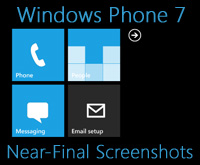 This week, a ROM image of a near-final (RC1 escrow) version of Windows Phone 7 leaked online, providing us with a near-final look at Microsoft's next smart phone operating system. (It's an unlocked version of the April CTP, for those who are curious.) If you've been following along on my Windows 7 Secrets blog, you know that I've been using these unlocked ROMs in tandem with Microsoft's freely-available Windows Phone developer tools to examine the company's progress using a software emulator. more... »
April 21, 2010
RAID Made Easy
Confused by the difference between RAID 0 and RAID 1+0? Our primer on the basics of data redundancy will help you sort out which type of RAID will best safeguard your data.
What is RAID, why do you need it, and what are all those mode numbers that are constantly bandied about? RAID stands for "redundant array of independent disks," and you may or may not need it depending on your data-storage requirements. more... »
March 19, 2010
$1500 Enthusiast System Components
In this installment of the System Builder Marathon (SBM) series, our mid-priced PC is more than just a solid machine built from great components. Instead, it's also an experiment to see exactly what benefits Intel's Core i7-920 offers when compared to the cheaper Core i5-750. more... »
March 4, 2010
WD SiliconEdge Blue 256GB SSD Review
Solid State Storage products are obviously setting the computing market on fire as of late. There is little question that the writing is on the wall. Like the vacuum tube transistors of yesterday, spinning hard drives are bound to go the way of the Dodo bird. It's only a matter of time; not if, but when. However, the "when" in reality will likely not come for years yet of course. In the Data Center, where ridiculously cheap bulk storage is critical, there is just no substitution for the cost per gigabyte metrics of traditional spinning disk media. However, in the end user notebook and desktop markets, especially where performance is often times a differentiator, SSDs are making huge inroads. It's only a matter of time (and cost reduction) before SSDs are the de facto standard for notebooks and then comes the desktop. We won't make any grand predictions here but there's good reason why the major hard drive manufacturers are lining up now to get some skin in the game. more... »
March 1, 2010
This is my first template of HTML5
January 17, 2010
How To Boot From A USB Flash Drive
For starters this is still a new science and many people have had good luck with at least one of these methods and others have not. Note that flash drives are often also called thumb drives, keychain drives, pendrives, etc. The NEWEST methods are listed last on this page, starting with Method 6 for Vista/Win7
A FEW THINGS YOU NEED TO CONSIDER IN ADVANCE. more... »
January 5, 2010
Intel X25-M SSD: Intel Delivers One of the World's Fastest Drives
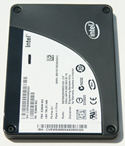
No one really paid much attention to Intel getting into the SSD (Solid State Disk) business. We all heard the announcements, we heard the claims of amazing performance, but I didn't really believe it. After all, it was just a matter of hooking up a bunch of flash chips to a controller and putting them in a drive enclosure, right?
At the high level, SSDs are still the key to truly solid performance and this is where the issues with the JMicron based MLC drives are really unfortunate, because it means that the most accessible SSDs on the market can actually deliver a pretty bad user experience. But if you look at what Intel's X25-M and the Samsung SLC drives can deliver, it's really quite good. more... »
December 17, 2009
Corsair intros 24GB DDR3 kit
For the low, low price of $1349.99, you can be the proud owner of Corsair's new CMD24GX3M6A1333C9 memory kit which bundles six 4GB DIMMs into one wallet-melting package.
“Corsair’s 24GB Dominator memory kit is perfect for high-performance computing applications, including computational research, HD digital content creation, working with multiple virtual machines, and other data-intensive applications,” said John Beekley, VP of Technical Marketing at Corsair. more... »
December 13, 2009
Is my mobo defective or am I missing something?
This is a new pc, just built. Here are the PC specs:
Crucial Ballistix Tracer 4GB (2 x 2GB) 240-Pin DDR3 SDRAM DDR3 1600 (PC3 12800) Desktop Memory
AMD Athlon II X4 630 Propus 2.8GHz Socket AM3 95W Quad-Core Processor
SAPPHIRE VAPOR-X 100269VXL Radeon HD 4890 1GB 256-bit GDDR5 PCI Express 2.0 x16
GIGABYTE GA-MA785GPMT-UD2H AM3 AMD 785G HDMI Micro ATX AMD
I assembled everything yesterday; and on the first boot up, 1) BIOS did not show up 2) the mobo did not beep 3) the mobo LED did not light up. It could not have been a power problem because the LEDs and fans of my chassis worked, and the power button on the front header turned on my pc. Also, it should not be a problem with my mobo receiving power since the heatsink was working. So, I disassembled everything but the cpu, mobo, and RAM and tried it: same problem. The cpu was properly placed in the board as well. Also, it should be noted that the front header power button turned the machine on, yet when held down for several seconds/minutes, the system did not shut off. more... »
November 30, 3009
Kaspersky Rescue Disk - Load Kaspersky AntiVirus 2009 Using DOS
Kaspersky Rescue Disk , a bootable DOS Based Kaspersky Antivirus to perform virus scanning and remove viruses on Windows without booting the operating system first. Using Kaspersky rescue disk to remove anti virus consider the most safety way without risking your computer OS getting infected again. more... »
November 1, 2009
Get a free license of IObit Security 360 Pro
IObit Security 360™ PRO
IObit Security 360 PRO is an advanced malware & spyware removal utility that detects, removes the deepest infections, and protects your PC from various of potential spyware, adware, trojans, keyloggers, bots, worms, and hijackers. With the unique "Dual-Core" engine and the heuristic malware detection, IObit Security 360 PRO detects the most complex and deepest spyware and malware in a very fast and efficient way. IObit Security 360 PRO has a real-time malware protection and frequent automatic updating for prevention of zero-day security threats. IObit Security 360 PRO can work with your Antivirus for a superior PC security. more... »
October 20, 2009
I replaced the damaged power jack on a Toshiba
Satellite L305 laptop
I usually tell customers that that kind of repair involves a motherboard replacement, but this friend brought me his daughters machine so I did some research and read this article. After following the instructions the machine did not boot up. I bought a new power supply off Amazon upon plugging it in the unit booted up fine. more... »
September 26, 2009
Steps To Follow When Dealing With DLL Errors
Most computer users become nervous and react in a complete disorganized manner when they come across an error message. Their first thought might be to immediately restart the computer and hope the error goes away. By this time, most users might be in a panic state, especially if they have an important deadline looming over their heads. However, this is not how it ought to be. more... »
September 1, 2009
Computer Repair Flowcharts
If you’re interested in following the diagnostic process of computer repair specialists, take a look at these flowcharts by Morris Rosenthal. They illustrate many of my thought processes when fixing a computer problem.
Boot Failure Troubleshooting more... »
July 19, 2009
A Pictorial Guide to Computer Hardware
From every kind of memory to A/V input/outputs, processors, and hard drives, this guide shows in easy-to-recognize pictorial form the possible guts in your computer. It's either a really useful quick guide, or the nerdiest poster we've ever seen. more... »
July 13, 2009
How to Choose Components for Building a Computer
Have you seen powerful machines that would do anything you would expect a super computer to do? Have you wanted to play excellent games but your computer restarts every time you run it? Well it's time you make a computer. Computer companies sell some but are more expensive and less powerful. By making your own you will save money, get a new and valuable skill and impress people (with the needs of a faster computer and all) along with a more powerful machine than what computer companies make that you can easily upgrade and repair. more... »
June 21, 2009
How-To: Fix-Replace a Laptop’s Sticky, Broken Keys
It’s fairly easy to fix a noisy overheated laptop: Open an underside panel, (carefully) blow out the dust, then enjoy the praise your wife lavishes on you for fixing her system. more... »
June 16, 2009
How Much Should It Cost To Replace The Motherboard On A Laptop?
John's wife's laptop died, and his local Geek Squad wants $800 total to replace the motherboard. John says he found the motherboard for $150, and he wants to know why Geek Squad thinks it will require $650 in labor. So all you IT and geek readers out there, we ask you: is this a fair price? more... »
May 26, 2009
How to Remove Stickers from a Laptop
Did you just buy a new laptop of other device, only to find it
covered in unattractive stickers?. Time to remove those stickers
and free your hardware from its role as a traveling
advertisement.
Steps
1. Make sure this laptop isn't too old. The stickers will dry up, and over time, the glue backing will separate from the printed material. If you decide to remove the stickers, do it quickly. The stickers are not going to stay fresh for more than a year or two, depending upon its quality. If your laptop is a relic, skip to the very last step to use a chemical removal method. more... »
May 13, 2009
My Dead Hard Drive story or How I restored my saved games
This is the story of how I ressurrected my hard drive.
How I fritzed my hard drive
I went away on holidays for 2 weeks, came home, turned on my PC and after about 10 seconds, heard some electrical fizzing. Ack!
I quickly turned off my PC, but being an idiot, thought, "I'll just make sure all the cables are in correctly and try again." more... »
April 13, 2009
The 6 Most Important Factors when Choosing a Power Supply
“Which power supply do I need?” “What should I look for?”
Have you ever asked yourself these questions? Many of you did ask me for some help regarding power supplies, so here we go! more... »
March 26, 2009
Ten things to check on a non-booting PC
In my case, the computer would appear to start up -- fans firing up, lights turning, hard disks spinning up -- but the fan on top of the CPU would move slightly, then stop. There was no video signal to my LCD monitor, but the status light on the video card was lit.
What follows are the steps I took to fix the problem, roughly in order. more... »
March 20, 2009
Free antivirus software is good for the wallet.
I am listing some of my favorite antivirus, spyware and other
malware tools to help you keep your PC free from infection. In
the age of broadband, networking and email, viruses are spreading
in an alarming rate. more... »
January 17, 2009
Do you make these 6 mistakes when buying a video card?
Since I’ve been a computer geek, I’ve heard many horror stories of people buying a slow video card, thinking that they were getting a fast model. more... »
January 8, 2009
How To Correctly Uninstall Programs From Your Computer
To maintain a high performance, error-free PC for a long time, it is essential that you keep it free from unwanted software. When you install a program, it not only adds files and folders on the hard disk, but also makes several registry entries that enable it to operate. So, having a large number of programs means having a very large registry too. A hard disk full of unwanted programs and a registry full of unwanted entries can slow down data access speed and as a result deteriorate the performance of your computer. This is the reason why, experts recommend that you scan your computer on a regular basis for programs you no longer use and uninstall them. more... »
December 8, 2008
How to Fix Your Home Network
There are few things that affect the functionality of the home as a home network. From paying bills to online banking, budgeting to shopping, and everything in between, staying connected is a must in today's tech savvy society. Today you'll look at what you need to do to successfully troubleshoot your cable internet home network and maintain optimum performance. more... »
November 22, 2008
Computer speakers do not work.
Cause:
This issue could be caused by any of the below reasons.
1. Sound card does not work
2. Speakers are not connected properly
3. No power to the speakers
4. Volume on speakers turned down
5. Volume on sound card turned down
6. Bad hardware
Solution: more... »
November 11, 2008
Computer speakers and Sound Cards
Computer speakers, or multimedia speakers, are external speakers, commonly equipped with a low-power internal amplifier. The standard audio connection is a 3.5mm (1/8 inch) stereo jack plug often colour-coded lime green (following the PC 99 standard) for computer sound cards.A plug and socket for a two-wire (signal and ground) coaxial cable that is widely used to connect analog audio and video components. Also called a "phono connector," rows of RCA sockets are found on the backs of stereo amplifiers and numerous A/V products. The prong is 1/8" thick by 5/16" long. A few use an RCA connector for input. There are also USB speakers which are powered from the 5 volts at 200 milliamps provided by the USB port, allowing about half a watt of output power. more... »
October 5, 2008
You want to build a computer?
You have spent months researching your hardware. You've been working overtime for countless weeks to pay for your new computer. You've spent the extra money on priority shipping, and have been watching the UPS tracker for the past several hours. But what happens when everything actually gets to your house? The UPS guy will come with a smile on his face, and bring in box upon box of expensive computer parts. He will leave knowing he has done his job, leaving you to your own devices. As you unpack everything, you slowly realize that you have absolutely no clue what to do. more... »
September 3, 2008
How to Fix a Stuck Pixel on an LCD Monitor
If your LCD screen has a stuck or dead pixel (a point on the screen that is always lit or always dark), it is usually due to a transistor malfunction or uneven distribution of liquid in the liquid crystal display (TFT LCD). This can often be fixed. more... »
August 3, 2008
Why is your PC crashing?
Fatal error: The system has become unstable or is busy,” it says. “Enter to return to Windows or press Control-Alt-Delete to restart your computer. If you do this you will lose any unsaved information in all open applications.” more... »
May 23, 2008
How to Clean the Inside of a Desktop Computer
Is your computer making noises or humming? Is dust collecting visibly on the external fan surface? Have you gone more than two months without cleaning the inside properly? Dust inside your computer can lead to component failure, fan failure, and slow performance. Keep your machine running smoothly and safely by taking the time to dust the interior. Don't wait until a fan dies and your machine overheats! more... »
April 10, 2008
Replacing Your Motherboard CMOS Battery
Computers contains a battery to keep time when the computer is
off, much like a watch or some alarm clocks. Just like a watch,
the battery needs to be replaced when it runs low on power. You
can purchase these batteries in most department or PC specialty
shops. For most of us, the computer becomes obsolete long before
we need to change the battery, but new technology allows us to
keep our systems longer and longer by swapping out
components.
How and Where to begin when changing the CMOS battery: more... »
February 27, 2008
Understanding DLL Errors and How To Fix Them
DLL: Overview
Dynamic Link Libraries (DLLs) are code libraries that are used by Windows operating systems and various software and device drivers on it to perform various functions. These files can be shared across multiple programs and therefore, they help in reducing the size of an application by minimizing the need to incorporate the same code again and again in different applications. more... »
January 11, 2008
How to Clean a Keyboard
Keyboards can become dirty after periods of extended use, especially if users commonly eat or smoke near the computer. If a keyboard becomes dirty enough, its performance can be affected. Common problems include dead or stuck keys and repeated characters during typing.
December 24, 2007
Upgrading Your Graphics Card
A new graphics card is one of the most upgradeable features for PCs and can significantly boost gaming performance.
Most newer computer motherboards come with an AGP (Accelerated Graphics Port) slot on the board, even if they have graphics integrated on the motherboard itself. This allows you to upgrade. In most cases the AGP card will override the integrated motherboard graphics. But in some cases, you'll need to go into the BIOS Setup and disable it. more... »
December 14, 2007
Device Manager Error Codes
The Device Manager in Windows XP is often the first place to look when you are having a problem with Microsoft Windows--particularly a piece of hardware that is malfunctioning. The Device manager lists the components in order, and will sometimes have a red "X" over the device, or an exclamation point beside its icon. This indicates there is a problem with the device, and if you double click the icon, you may find that there is an error code associated with the error. more... »
November 7, 2007
5 Ways to Make a Slow PC Faster
Listed below are 5 tasks that you can perform in order to make your PC run faster.
Keep The Hard Disk Free Of Unwanted Information
Your system is at its best performance when it is brand new because at that time it does not contain any unwanted information. Your PC starts filling up when you start installing additional programs, creating and storing new files, browsing the web and downloading emails. Over time, a lot of unwanted files and programs collect on your PC and unnecessarily slow it down. Therefore, your first step to make your slow PC run faster would be to get rid of this unwanted stuff. You can do this by using the Disk Cleanup tool. In Windows XP, you can access this tool from Start > All Programs > Accessories > System Tools > Disk Cleanup. more... »
November 4, 2007
Installing A SATA Hard Drive
Installing a Serial ATA hard disk drive is generally easier than an IDE drive, as it is not necessary to configure jumpers. While physically installing the hard drive in the machine is similar, the SATA drives require less configuration and planning. The hard drive will have jumpers at the rear of the drive, but they are used for power management and have nothing to do with Master, Slave and Cable Select as the IDE drives use. more... »
July 14, 2007
How to Buy a Power Supply
The power supply unit (PSU) is one of the few items in an electrical device that will affect the performance and reliability of your entire system. It is often the most undervalued, under-appreciated component within any device, yet one of the first components to cause failure. more... »
July 3, 2007
Troubleshooting Computer Freezes / Lockups
How familiar does the following sound? Your computer was working fine, but then suddenly started locking up (aka hanging or freezing), rebooting itself (crashing) or shutting down spontaneously? If you know only too well what I am talking about, then read on! Performing the simple steps below can fix the majority of lockup cases.
April 15, 2007
How to Build a Computer
Most people just assume that a new computer is a Dell or Gateway. Few people (other than the technically inclined) know that Dell and Gateway skimp on the parts inside the computer. What you're left with is a third-rate computer that costs much more than it should have. more... »
April 12, 2007
How to Save a Laptop from Liquid Damage
Don’t drink and type
If you're tempted to down a soda, water, glass of wine, coffee,
or other liquid while typing away at your keyboard, you may end
up paying the ultimate price—liquid spilled into your
computer from an accidental knock, a few drips or a dropped cup.
If this happens, don't panic. Instead, follow these simple
instructions as quickly as you can to try to salvage your
computer.
Steps
1. Shut it off! Immediately remove the battery, the A/C
adapter, and unplug the device after the spill. The biggest
danger at first is the device shorting out.
2. Turn it upside down immediately to stop the liquid from
traveling deeper into the machine.
3. Clean up any part of the spill you can get to. Use paper
towels or any absorbent material that is lint-free.
4. Inspect the keyboard. Some keyboards are designed to protect
the internals from liquids: more... »
November 11, 2006
Trouble Shooting Tips after Installing a New Hard Drive
Basic Troubleshooting Tips after Installing a New Hard
Drive
Based on Seagate IDE hard drives.
If you have installed your drive and it does not function properly, perform the following basic checks:
Warning: Always turn off the computer before changing jumpers or unplugging cables and cards. Wear a ground strap or use other antistatic precautions while working on your computer or handling your drive. more... »
September 03, 2006
How to Install a Dvd Drive
It’s fairly easy to upgrade your computer and install a
DVD drive whether it’s internal or external. The total cost
should be under $100 since you’re doing the labor.
Steps
To install an external DVD drive:
Look for a DVD with the letters RW on the box. This is so you
can read disks and record them as well. Make sure the speed
rating is 16X and that the DVD is dual layer so that it takes
care of the latest technology. more... »
August 31, 2006
How to Fix Computer Speakers
If your having problems with your computer speakers try the
basic troublehshooting yourself. It's a great way to avoid paying
for costly PC repair. The guide below is for computers running
Windows XP Home, Professional, or 64 bit editions. more... »
August 23, 2006
Top Computer Repair Tips
These everyday tips for smart computing can help you make future
service trips less painful--or even avoid them.
Buy your PC with a three-year warranty: That will insure your PC for most of its useful life. If that level of protection doesn't come standard, as little as $100 can buy the additional years (see Consumer Watch for more on long-term warranties). Where possible, get this coverage from your PC's manufacturer, so you always deal with the people who built your system--it's often cheaper, too. more... »
